1. Download the macOS Installer
You can download the Decent Sampler installer from here. On this screen, you will be presented with two options:
Most people with recent Macs will want to download the first option (10.15+). The second one is provided only for older machines.
After downloading, your browser will place the file in your Downloads folder.
2. Locate the Download in Your Downloads Folder
Open your Downloads folder and look for either:
- A
.zipfile (e.g.,Decent_Sampler-1.14.1-Mac.zip), or - A
.pkgfile (e.g.,Decent_Sampler-1.14.1-Mac.pkg)
3. Unzip the File (If Needed)
If you see a .zip file:
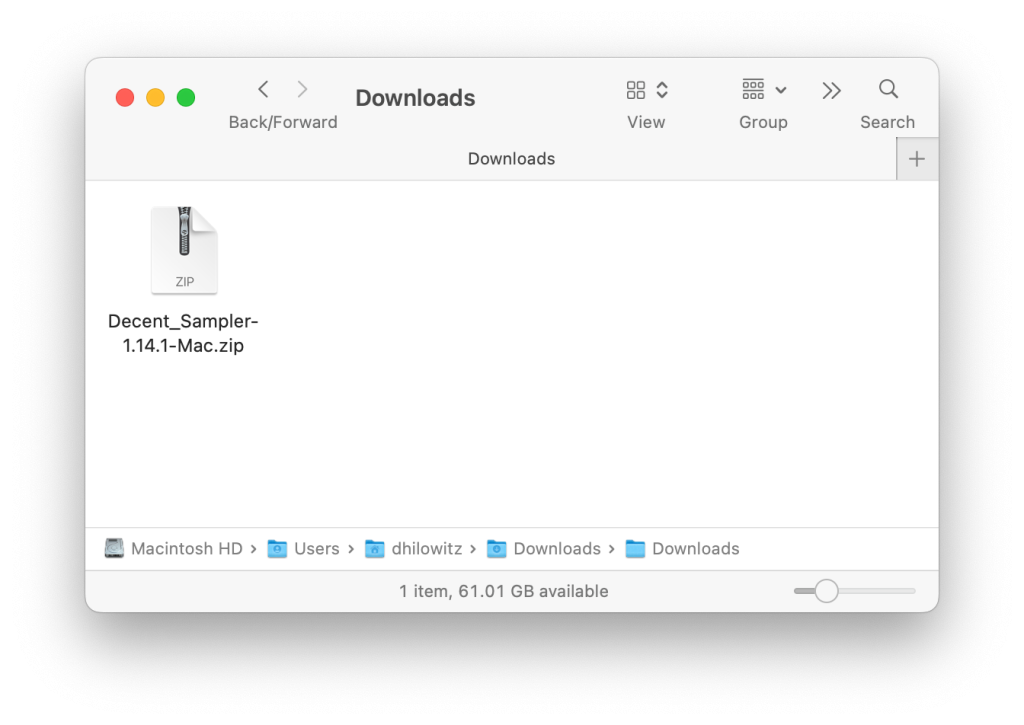
- Double-click it to extract the
.pkginstaller.
You should now have a file such as:
Decent_Sampler-<version>-Mac.pkgCode language: HTML, XML (xml)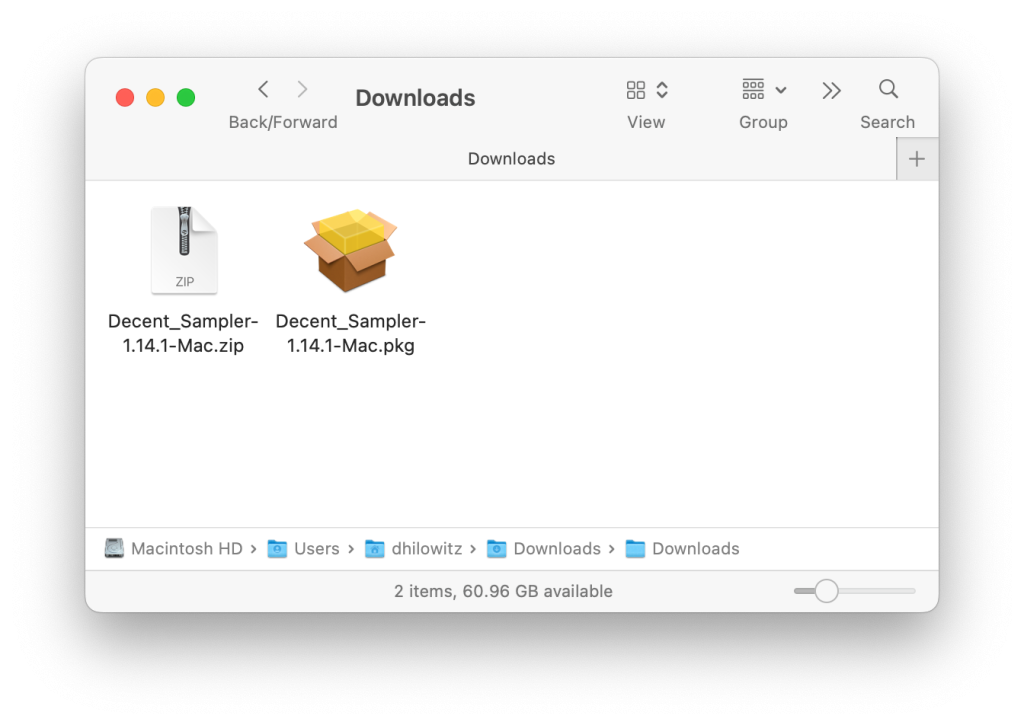
4. Run the Installer
Double-click the .pkg file, and follow the on-screen instructions.

The installer automatically installs all components to the correct locations. You may see a message that looks like this:
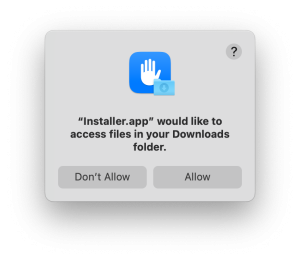
If you do see this, just click Allow.
5. Approve macOS Security (If Prompted)
If macOS blocks the app or plugin:
- Open System Settings → Privacy & Security
- Find an Allow Anyway or Open Anyway button for DecentSampler
- Approve it and relaunch
6. Launch Your DAW & Rescan Plugins
Most DAWs detect the plugin automatically, but you can manually rescan if needed.
- Logic / GarageBand / MainStage: AU
- Ableton Live: VST2 / VST3
- Reaper / Studio One / Cubase / Bitwig: VST3
- Pro Tools: AAX
7. Use the Standalone App (Optional)
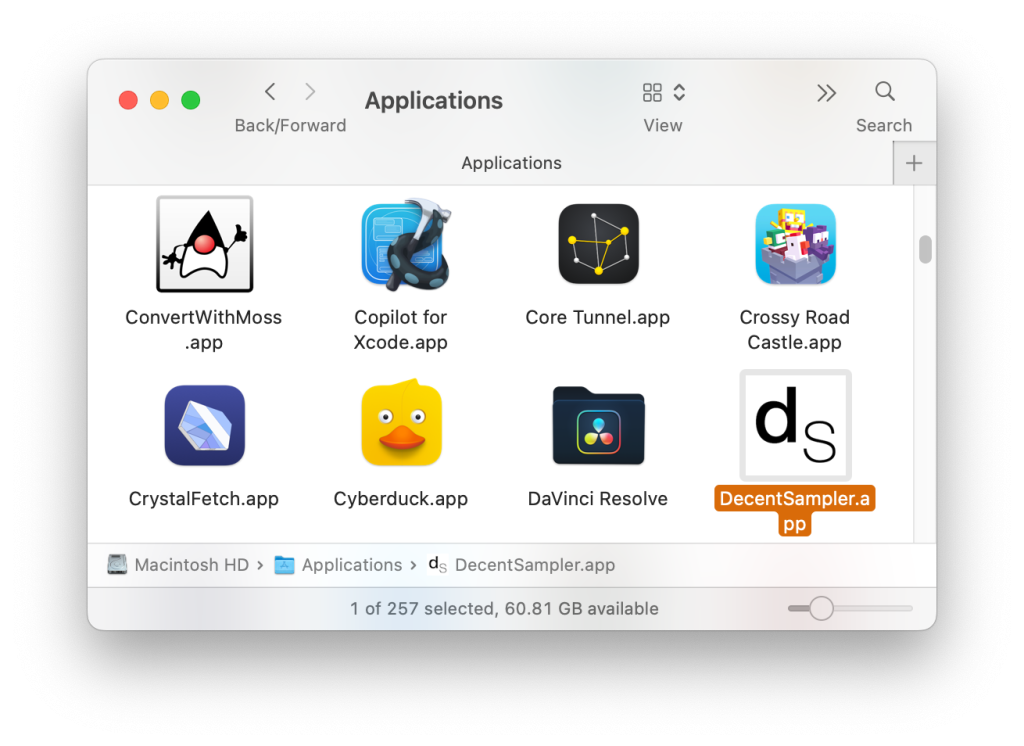
You can also run DecentSampler directly from:
Applications → DecentSampler
8. Create a Decent Samples Account (or Log In)
To download libraries directly inside the app, you’ll need a Decent Samples account.
If you haven’t created an account yet:
You can create one inside the app or on the website using your email address.

If you’ve already made purchases:
Make sure to log in using the same email address you used when you bought libraries.
This ensures your purchased instruments show up properly inside the app.

9. Download Sample Libraries from Inside DecentSampler
The easiest way to install sound libraries is directly through DecentSampler itself.
To browse and download libraries:
- Open DecentSampler (standalone or plugin).
- Click the BROWSE button in the top toolbar.
- You’ll see a list of available sample libraries — both free and paid.

- Click on any library to view its details.
- Click GET to install it:

DecentSampler will automatically:
- Download the library
- Install it in the correct location
- Add it to your library list
No manual file handling required.
That’s it! Enjoy!